
Trading in your Apple device? Great!
But there’s one step people trip up on: removing the iPhone Activation Lock (the feature tied to your Find My and Apple ID). If the Activation Lock is kept on, we cannot process or pay you for your device. But not to worry, it’s easy to remove and get the money flowing to you!
This short guide covers two scenarios:
- Removing Activation Lock before you trade in.
- Removing Activation Lock after you’ve already handed the device in.
Follow the steps below and you’ll be sorted easy. And if you need a hand, don’t hesitate to ring us at 01902 256 300, we’re here to help you get paid!
- You know your Apple ID and password.
- You can get online.
- The device is not reported lost or stolen.
Removing Activation Lock before trade in
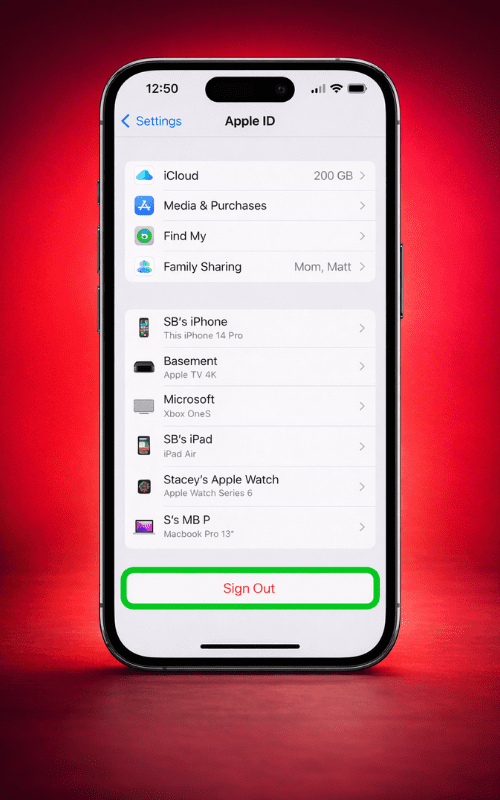
Follow these steps:
Go to icloud.com/find and sign in with your Apple ID.
Tip: If you’re asked for two-factor codes you can’t access, choose Find Devices at the bottom to sign in without a code.
Click All Devices and select the device you’re trading in.
Click Remove This Device.
If the device is offline: Activation Lock is removed immediately.
If the device is online: it can’t be removed right away. Choose Continue to mark it Ready for Repair or Trade-In for 30 days (then turn the device off or sign out on the device itself).
Even quicker option: On the device itself, sign out of Apple ID in Settings (iPhone / iPad) or System Settings (Mac). This will also remove it from Find My.
Completing these steps means your device disappears from the Find My device list, and your Activation Lock is off, meaning we can process and pay you!
Removing Activation Lock after you've already handed it in
Not to worry at all if this happens! It’s a quick simple fix and we can get your payment your way ASAP.
Steps to follow (you can do this from any browser):
- Go to icloud.com/find and sign in.
- Click All Devices, then select the device you traded in.
- Choose Erase Device.
- Don’t add a phone number or message; you haven’t lost it, just trading it in.
- If the device is offline, the erase will start when it next comes online. You’ll get an email confirmation.
- When the erase completes, click Remove This Device.
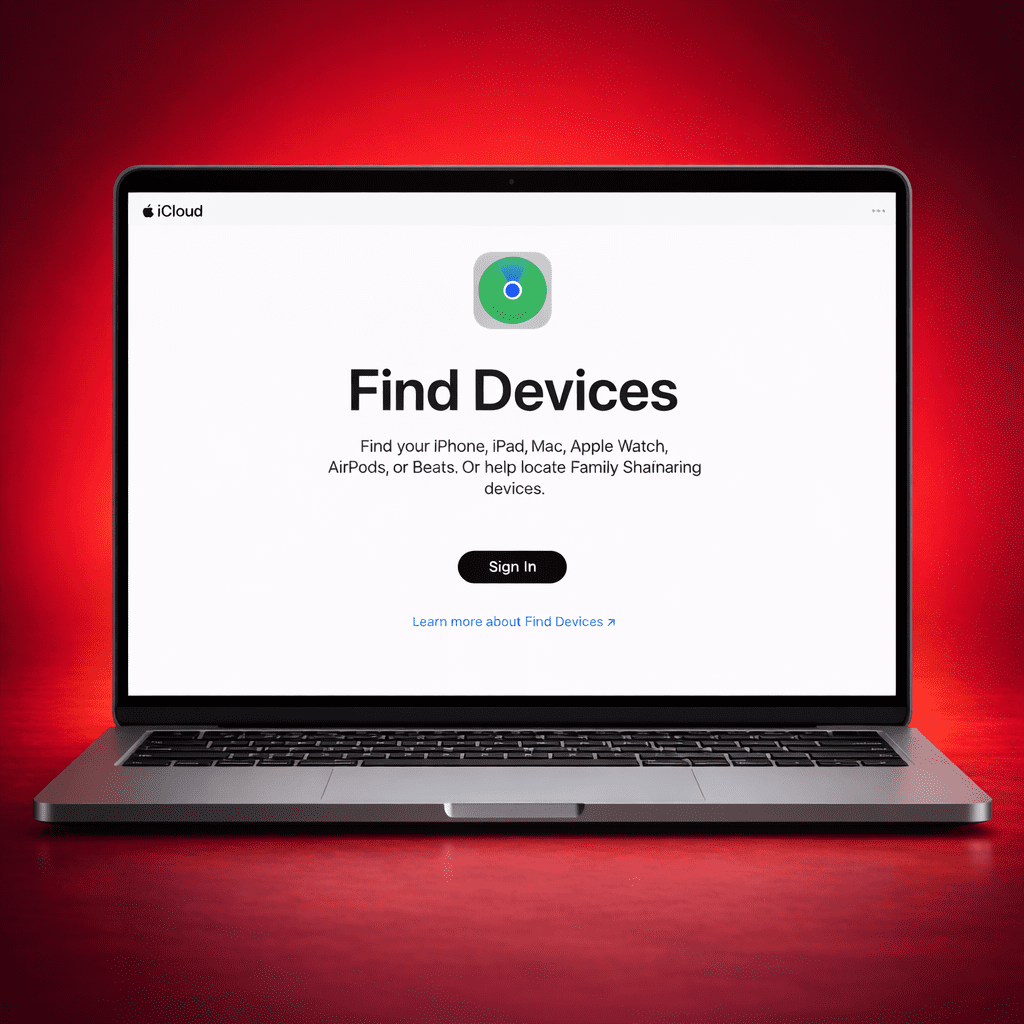
And that’s it! Activation Lock is removed straight away, and the device is removed from Find My. We can now process your phone and payment!
What happens if the device comes back online later?
If 30 days pass after you marked it Ready for Repair or Trade-In and the device comes back online while still signed into your Apple ID, it can reappear in Find My and re-enable Activation Lock. To avoid this:
Choose the Erase Device → Remove This Device route if you’ve already handed it in.
Or fully sign out of Apple ID on the device before sending it.
Troubleshooting tips
Forgot Apple ID password? Use Apple’s iforgot.apple.com to reset it.
Two-factor code issues? On icloud.com, choose Find Devices at the bottom to sign in without entering a code.
Still seeing the device in Find My? Refresh the page, or check you completed Erase Device and then Remove This Device.
Multiple Apple IDs? Make sure you’re using the same Apple ID that was signed in on the device.
Quick FAQ's
Yes. Erasing devices deletes the content from the device. Your iCloud data will remain in your account so you can restore it to a new device later.
No. For security purposes, only the Apple ID holder can remove the Activation Lock. We’ll guide you through the steps, but we can’t unlock it without your actions.
Removing the Activation Lock is key to a smooth, efficient device sale. If you still have the device, sign out of it now. If you’ve already handed it in, erase and remove the device. Once done, we can process and pay you fast!
Don’t forget, if you get stuck, don’t hesitate to reach out for help.