Setting up a new iPhone should be exciting, but if you’ve ever been stuck staring at the “Apps & Data” screen or had a transfer fail halfway through, you know it can quickly turn stressful. You just want your phone ready to use, not hours of confusion.
This guide covers the most common issues when setting up your iPhone, plus practical fixes. Whether you want to start fresh, transfer data without having both phones side by side, or recover from a failed setup, we’ll walk you through it step by step.
1) Starting fresh: “Set up with zero transfer”
Sometimes, you don’t want to move anything across — maybe you’re starting fresh, or the transfer just isn’t working.
Steps to set up as new:
- Turn on your new iPhone.
- Follow the prompts until you reach Apps & Data.
- Choose Set Up as New iPhone (or “Don’t Transfer Apps & Data”).
- Sign in with your Apple ID.
- Finish setup and install only what you need.
What you’ll still get automatically (if enabled on your Apple ID):
- Contacts, calendars, and notes from iCloud.
- iCloud Photos and iCloud Drive files.
- Messages synced via iCloud.
When this makes sense:
- You want a clean slate.
- You don’t need the clutter from your old phone.
- The transfer keeps failing and you want to get started now.
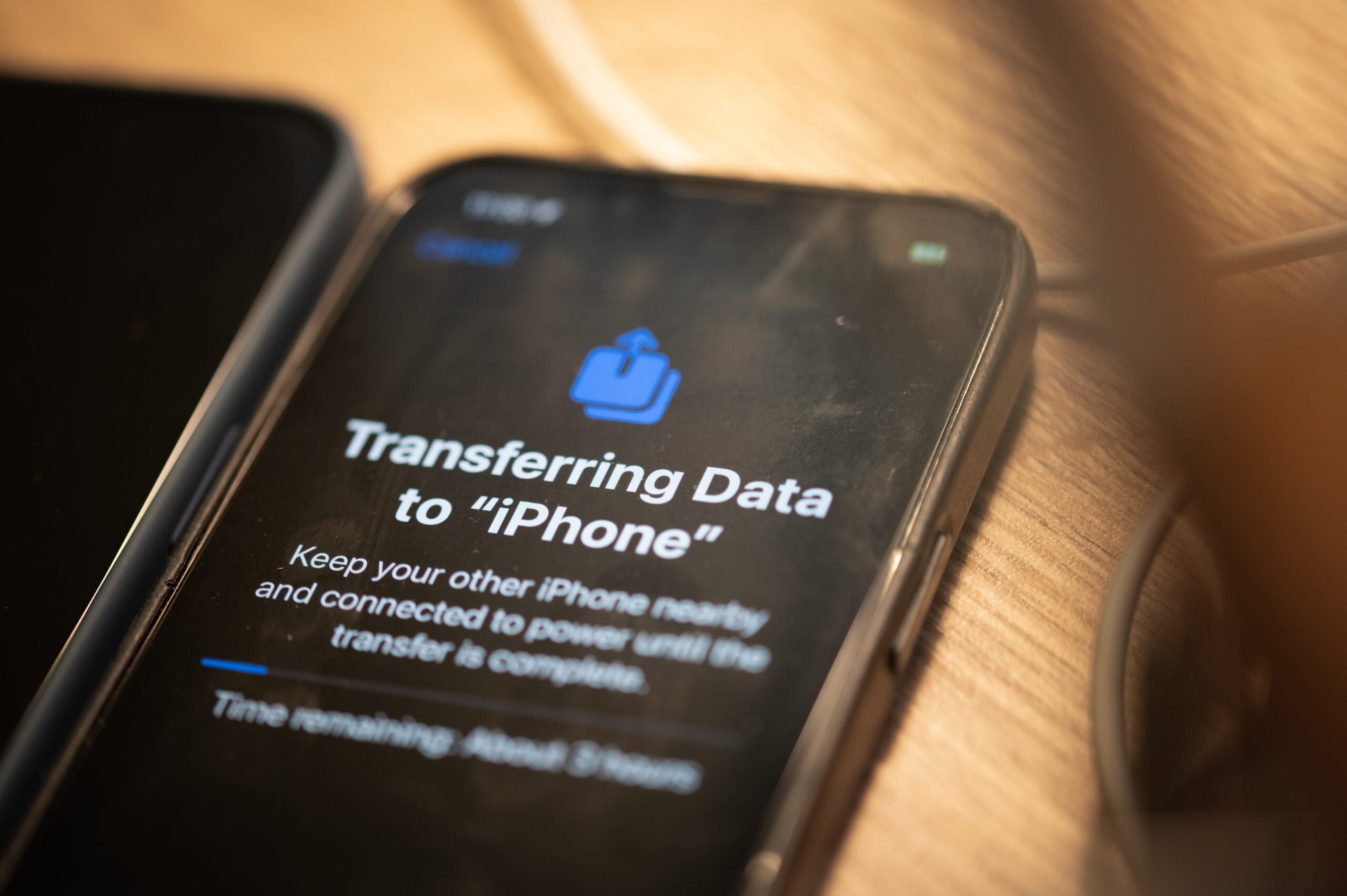
2) Transferring when you can’t place the phones side by side
If you can’t use Quick Start (the phones together method), you still have options.
iCloud Backup & Restore
- On your old iPhone: Settings → [Your Name] → iCloud → iCloud Backup → Back Up Now.
- On your new iPhone: during setup, choose Restore from iCloud Backup.
- Sign in, select the backup, and wait for apps and media to download.
Tip: Apple now offers temporary iCloud storage to help you transfer even if you’re low on space.
Computer Backup & Restore
- Connect your old iPhone to a Mac or PC.
- Back up using Finder (Mac) or iTunes (Windows).
- On your new iPhone: choose Restore from Mac or PC during setup.
- Connect and restore the backup.
Best for:
- Weak Wi-Fi connections.
- Large photo/video libraries.
- Preserving Health data and passwords (requires encrypted backup).
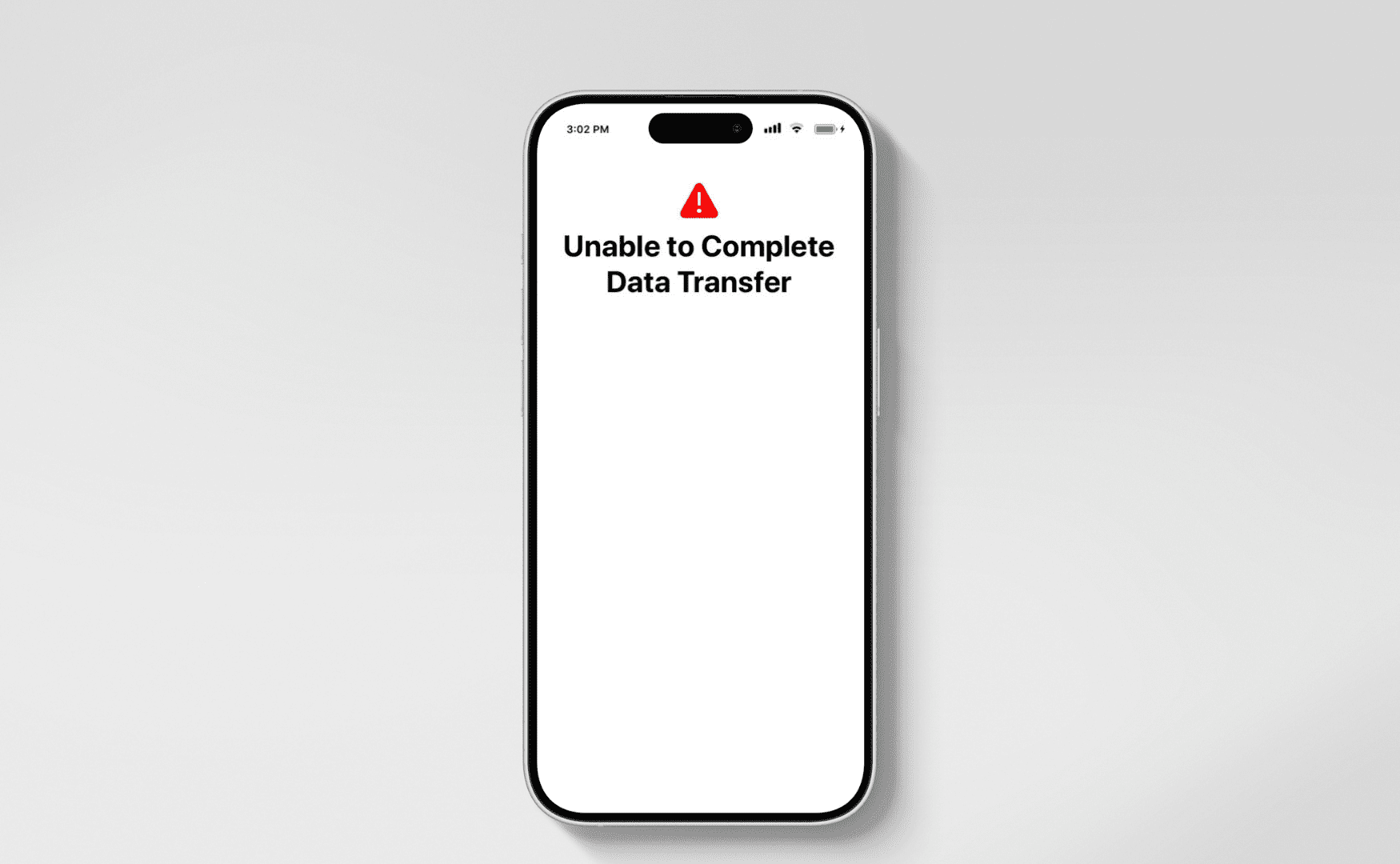
3) If your data transfer fails or is too glitchy
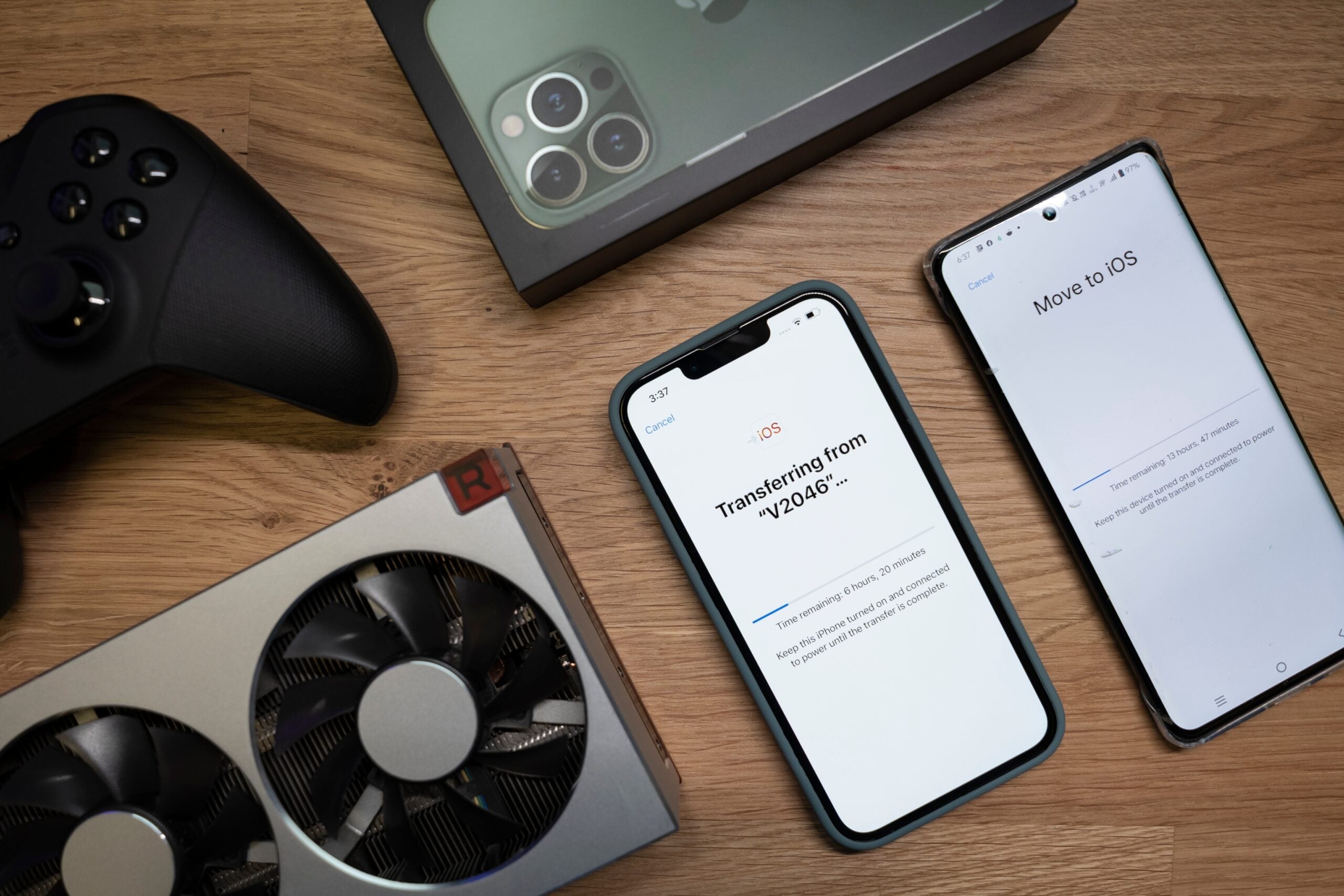
Few things are more annoying than a failed transfer. Common issues include:
- Transfer stalling or crashing.
- Poor Wi-Fi connection.
- Low battery on one device.
- Outdated iOS versions between phones.
Fixes to try:
- Plug both phones into power.
- Make sure Wi-Fi is strong and VPNs are disabled.
- Restart both devices.
- Update iOS before trying again.
If it still won’t work, set up as new, then sign into iCloud later to pull across what you need.
4) Adding Data After Setup
Did you already skip the transfer? You can still bring your data over.
Option 1: iCloud sync
- Go to Settings → [Your Name] → iCloud.
- Turn on Contacts, Photos, Notes, and more.
- Wait for content to appear.
Option 2: Restore from backup later
- Go to Settings → General → Transfer or Reset iPhone → Erase All Content and Settings.
- Restart setup, this time choosing Restore from iCloud or Restore from Mac/PC.
5) Table: Which method works best in which case
| Scenario | Best method | Notes / caveats |
|---|---|---|
| You have both phones side by side | Quick Start (direct device-to-device) | Fastest; operates locally |
| Phones can’t touch / distant | iCloud backup & restore | Requires internet and backup is recent |
| You have a computer | Backup old → restore to new | Good when internet is slow |
| Transfer fails or is buggy | Setup fresh + add later | Use sync or reset-restore method |
| Old phone broken or lost | Use iCloud / computer backups | You need backups available |
6) Common tricky edge cases & how to handle them
- 2-factor authentication / verification issues: If Apple sends a code to an old device you no longer have, you may need to start account recovery or contact Apple Support.
- Apps tied to a different Apple ID: Apps purchased under another Apple ID won’t transfer if you switch IDs. You’ll need to re-purchase them or use Family Sharing.
- Health / Activity / passwords: These require an encrypted backup or iCloud syncing. A standard (non-encrypted) backup won’t include them.
- Large media libraries / limited iCloud storage: You may need to offload photos or videos to an external drive or computer before backing up.
- Transfer dips or stalls: If the transfer freezes, cancel it and retry — or switch to the backup-and-restore method instead.
- Data already in iCloud: If you already use iCloud Photos, Contacts, or similar services, much of your data is already stored online. A clean setup followed by iCloud sync may restore most of what you need.
Final Thoughts
Common issues when setting up your iPhone can be frustrating, but there’s always a way forward — even if that means starting fresh and adding your data later.
If you’re still stuck after trying these steps, don’t worry. At The Big Phone Store, our team deals with iPhone setup and transfers every day. You can reach out to us for friendly advice, whether you bought your iPhone from us or not.