- How Old Is My iPhone? From iPhone X to the iPhone 17 Series
- 1. Check the Model Number (Works Every Time)
- 2. Check the Model Name
- 3. Don't Try to Decode the Serial Number
- 4. Check Your Purchase Date
- 5. Check Your Apple Account and Warranty Information
- 6. Use iOS Compatibility as a Clue
- Quick Reference: iPhone Release Dates (X to 17 Series)
- Why Your iPhone’s Age Matters in 2026
- Model Age Isn't the Whole Story
- The Quickest Way to Check Your iPhone's Age
- Looking to Upgrade?
How Old Is My iPhone? From iPhone X to the iPhone 17 Series
Ever found yourself asking, “How old is my iPhone?” You might be checking its resale value, deciding whether it is time to upgrade or simply wondering how long your phone has been around.
There are two different answers:
- Model age: How long ago Apple first released that iPhone model.
- Device age: When your specific phone was purchased or activated.
Here are the most reliable ways to check both, covering everything from the iPhone X to the complete iPhone 17 series.
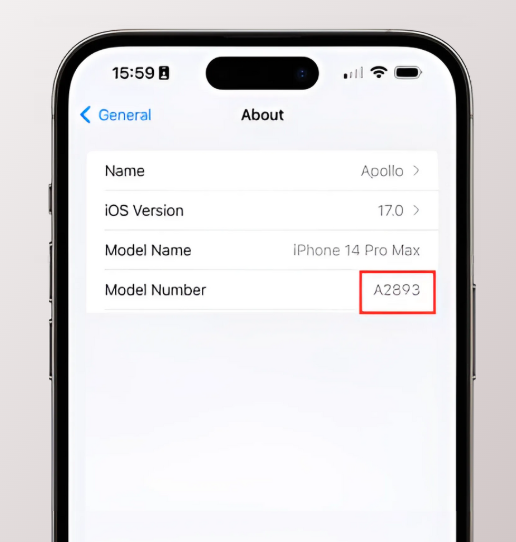
1. Check the Model Number (Works Every Time)
The quickest way to identify an iPhone is through its model number.
Go to:
Settings > General > About > Model Number
You may initially see a part number beginning with “M”. Tap it once to reveal the five-character model number beginning with “A”, such as A3520.
You can then compare it with Apple’s official iPhone model list to find the model and the year it was introduced.
Model numbers can vary by country because different versions may support different mobile networks. Therefore, several “A” numbers can belong to the same iPhone.

2. Check the Model Name
You may not need the model number at all. On most iPhones, the name is displayed directly under:
Settings > General > About > Model Name
Once you know whether you have an iPhone 12, iPhone 15 Pro Max or another model, you can use the release-date table below to calculate its approximate age.
This tells you the age of the model, rather than when your particular phone was bought.
3. Don't Try to Decode the Serial Number
Older versions of this guide suggested that individual characters in an iPhone’s serial number could reveal its manufacturing year. That is no longer a reliable method.
Apple began using randomised serial numbers in 2021, so newer serial numbers cannot be decoded using a simple letter-to-year chart.
You can still find your serial number under:
Settings > General > About > Serial Number
Enter it on Apple’s coverage-checking page to view available warranty and AppleCare information. However, it may not show the precise manufacture or activation date.
Avoid entering your serial number or IMEI into unknown third-party websites. These are unique device identifiers and should be treated as private information.
4. Check Your Purchase Date
If you want to know how old your individual iPhone is, rather than when the model launched, your original purchase information is usually the best evidence.
Check:
- Your original receipt or invoice
- Your Apple, retailer or network order-confirmation email
- Your mobile contract start date
- Your bank or credit-card statement
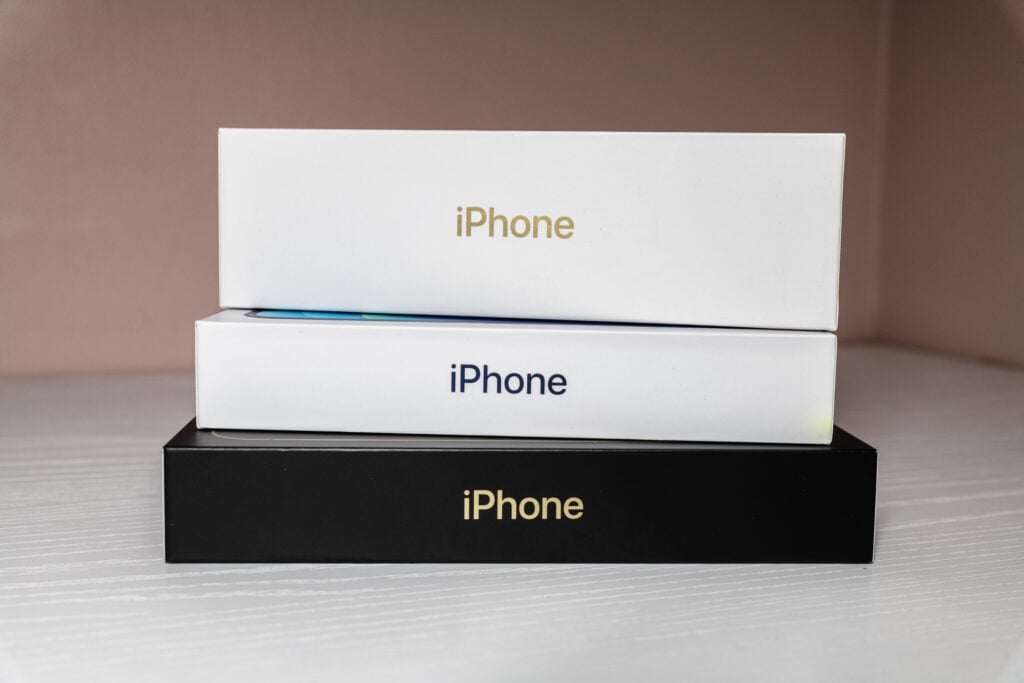
- The original box, which may help confirm the device’s serial number and IMEI
If you bought the phone second-hand or refurbished, remember that your purchase date will not be the same as the phone’s original activation date.
5. Check Your Apple Account and Warranty Information
Visit account.apple.com and sign in to see devices linked to your Apple Account. You can also view coverage information directly on some iPhones under:
Settings > General > AppleCare & Warranty
This can help you identify the device and establish whether it still has eligible coverage. It will not always reveal the original purchase date, particularly if the iPhone is older or has changed owners.
6. Use iOS Compatibility as a Clue
Software compatibility can provide a useful clue, although it cannot tell you an iPhone’s exact age.
As of July 2026:
- iPhone X: Supports up to iOS 16
- iPhone XS, XS Max and XR: Support up to iOS 18
- iPhone 11 and newer: Compatible with iOS 26
Apple’s current compatibility list includes the iPhone 11 series through to the iPhone 17 series, including the iPhone Air, iPhone 16e and iPhone 17e. See Apple’s iOS 26 compatibility list.
To check which version your phone is running, go to:
Settings > General > About > iOS Version
You can also visit:
Settings > General > Software Update
An older iOS version does not necessarily mean your phone cannot run a newer one—it may simply not have been updated yet.
Quick Reference: iPhone Release Dates (X to 17 Series)
| iPhone model | UK release date | Approximate age in July 2026 |
|---|---|---|
| iPhone X | 3 November 2017 | 8 years, 8 months |
| iPhone XS / XS Max | 21 September 2018 | 7 years, 10 months |
| iPhone XR | 26 October 2018 | 7 years, 9 months |
| iPhone 11 / 11 Pro / 11 Pro Max | 20 September 2019 | 6 years, 10 months |
| iPhone 12 / 12 Pro | 23 October 2020 | 5 years, 9 months |
| iPhone 12 mini / 12 Pro Max | 13 November 2020 | 5 years, 8 months |
| iPhone 13 / 13 mini / 13 Pro / 13 Pro Max | 24 September 2021 | 4 years, 10 months |
| iPhone 14 / 14 Pro / 14 Pro Max | 16 September 2022 | 3 years, 10 months |
| iPhone 14 Plus | 7 October 2022 | 3 years, 9 months |
| iPhone 15 / 15 Plus / 15 Pro / 15 Pro Max | 22 September 2023 | 2 years, 10 months |
| iPhone 16 / 16 Plus / 16 Pro / 16 Pro Max | 20 September 2024 | 1 year, 10 months |
| iPhone 16e | 28 February 2025 | 1 year, 5 months |
| iPhone 17 / 17 Pro / 17 Pro Max | 19 September 2025 | 10 months |
| iPhone Air | 19 September 2025 | 10 months |
| iPhone 17e | 11 March 2026 | 4 months |
Why Your iPhone’s Age Matters in 2026
Resale and trade-in value
Age is one factor used to calculate an iPhone’s value. Newer generations generally command higher prices, but the exact model, storage capacity, condition, battery health and repair history can matter just as much.
Software and security support
Older iPhones eventually stop receiving major iOS upgrades. This may gradually affect security support, app compatibility and access to new features.
Repair or upgrade decisions
Knowing the phone’s age can help you decide whether repairing it represents good value. A battery replacement may give an otherwise reliable iPhone several more years of useful life, while repeated faults on a much older device could make an upgrade more practical.
At The Big Phone Store, we repair every device, not just iPhones. We carry out around 500 battery replacements a day, and every repair meets the same standard: ESD-safe handling, Apple OEM tooling and presses, and a check that no device leaves us with a missing screw or a poorly seated battery. If your iPhone just needs a new battery, it’s usually worth fixing rather than replacing.
Battery performance
Rechargeable batteries naturally lose capacity over time, although age alone does not determine battery condition.
Check yours under:
Settings > Battery > Battery Health
A heavily used two-year-old iPhone can have a more worn battery than an older phone that was used less frequently.

Model Age Isn't the Whole Story
Two iPhones of the same model can have very different histories. One may have been purchased at launch and used daily, while another may have been bought later, stored for months or fitted with a replacement battery.
If you are valuing an iPhone, check all of the following:
- Exact model
- Storage capacity
- Cosmetic condition
- Battery health
- Network or Activation Lock status
- Parts and repair history
- Whether all features work correctly
On supported devices running iOS 15.2 or later, previous repairs may appear under:
Settings > General > About > Parts and Service History
The Quickest Way to Check Your iPhone's Age
For a quick answer:
- Open Settings > General > About.
- Find the Model Name.
- Compare it with the release-date table above.
- Check your receipt or order history for the age of your specific device.
- Use Apple’s warranty checker if you need more information about its coverage.
Your model name tells you when that generation launched, while your receipt or original order information gives you the clearest indication of how long your particular iPhone has been in use.
Looking to Upgrade?
If you’ve been checking your iPhone’s age, there’s a good chance you’re already thinking about your next phone. Before you pay full price for new, take a look at refurbished.
You get the same iPhone, tested and graded properly, for a lot less than buying new. Browse our range of refurbished iPhones and see what you could save.
Not using an iPhone? Read our step-by-step guide to finding out how old your Android phone is.